

In practice
How can I make my booking page feel more trustworthy?
Show who provides the service, what is included, how long it takes and how pricing works. Use genuine contact and location details and review the page on a phone. A simple, clear profile can be useful without filling fields with unhelpful information.
In this guide
1. Answer the questions customers have before choosing
Someone opening a link for the first time wants to recognize the business and understand the appointment. A name, duration, price and location where relevant help them decide without messaging for the basics.
You do not need every social profile or a lengthy description. Prioritize genuine details and recognizable service names. Make a distinction such as “assessment” clear before someone assumes they are booking the full procedure.
- Check the name and image crop on a phone.
- Explain what is included and how pricing works.
- Review contact and location details where relevant.
2. Describe services for the person choosing
Lead with the service customers recognize and put long details in the description. Check duration, price type and inclusions before adding extras.
Choose fixed, starting-from, on-request or free pricing appropriately. Do not present a free assessment as if it included the full service.
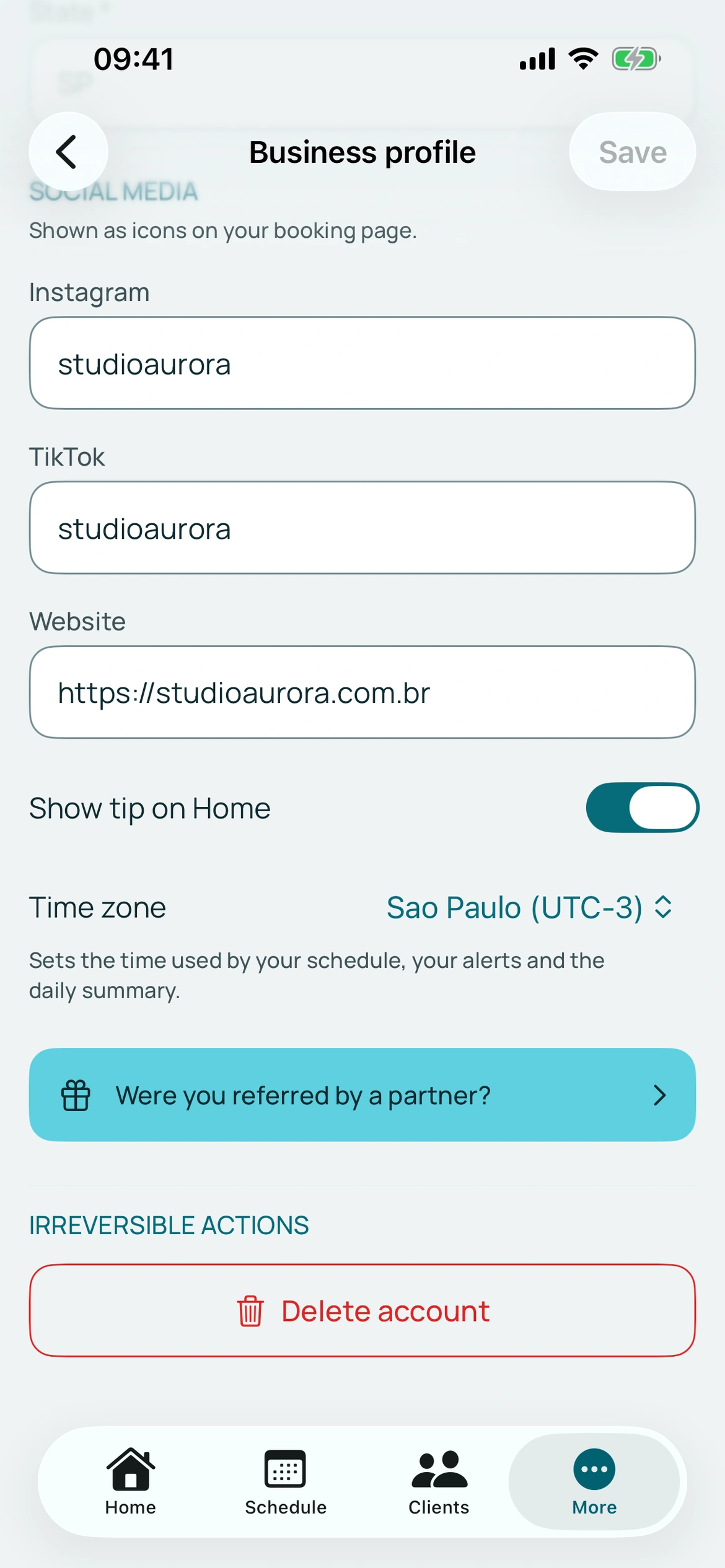
BookingChat product demo. The information shown is illustrative.
3. Check the mobile experience
Open your link and review services, extras and questions. You can check the presentation without creating a real appointment.
Add useful preparation instructions. Customers book in their browser without an account and manage their appointment through its link. The page is not a complete online store.
Put it into practice in your calendar
No card required to try it.
App for Android and iPhone. Your customer books in their browser.