

In practice
How can I stop bookings during lunch breaks, days off and holidays?
Set recurring lunch breaks separately from one-off blocks in the correct calendar. Check existing bookings and agree on any necessary changes with customers. Closing availability should not be confused with rescheduling appointments already booked.
In this guide
1. Protect recurring time and check exceptions
A weekly break saves you from closing lunch time day after day. A day off or holiday must cover the correct date and the people who will actually be away.
Before changing availability, check who is already booked. Closing new bookings does not resolve existing commitments by itself: review each affected appointment and agree on the next step with the customer.
- Separate recurring breaks from one-off absences.
- Check whether the change affects one person or the business.
- Review existing appointments and test that date through the link.
2. Choose the right period and calendar
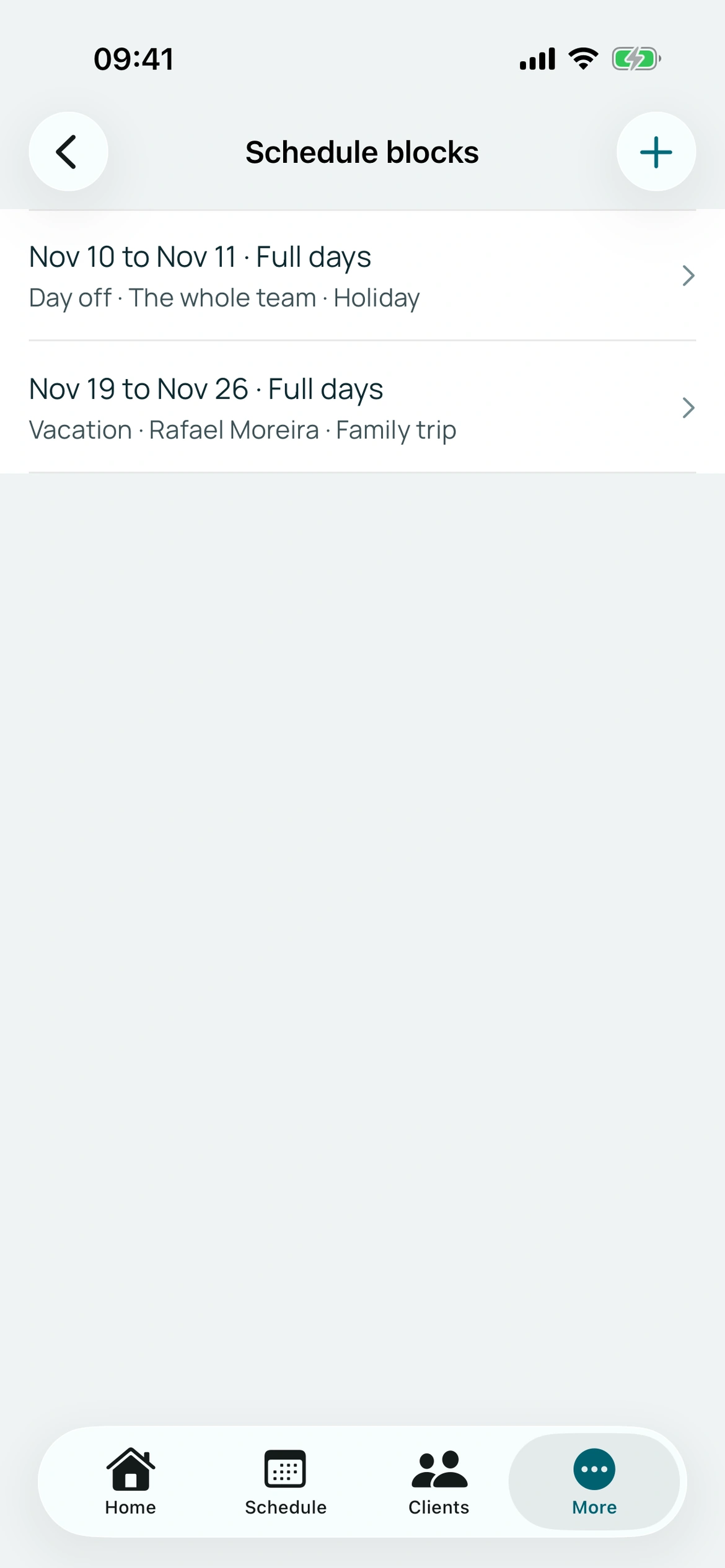
Check whether you are blocking the business or one professional, and review start and end times. An individual block should not be expected to close every calendar.
The full service, including extras, must fit outside the unavailable interval. Check overlapping reservations when simultaneous capacity is enabled.
BookingChat product demo. The information shown is illustrative.
3. Review existing bookings
Do not confuse changing availability with automatically notifying customers of a reschedule. Review affected appointments and arrange changes with customers where necessary.
Open the booking page for the actual blocked date and check that the intended times disappear while other availability remains.
Put it into practice in your calendar
No card required to try it.
App for Android and iPhone. Your customer books in their browser.