

In practice
How can I stop messaging each customer just to agree on an appointment time?
Let customers browse services and availability through a link and explain where to book. WhatsApp Business greeting and away messages can direct eligible contacts to that page; they do not answer every message or replace help with customer questions.
In this guide
1. Separate checking times from answering questions
When every customer asks what is free, you have to check the calendar, reply and check again before agreeing. Giving access to available options reduces that back-and-forth for a straightforward booking.
Introduce the link with brief instructions to choose a service and time. Keep conversation available for questions the page does not answer. Test the address on your phone before setting up an automatic message.
- Use service names and durations customers understand.
- Check that times are actually available.
- Explain that booking happens on the page rather than inside the chat.
2. Copy the kit’s prepared message
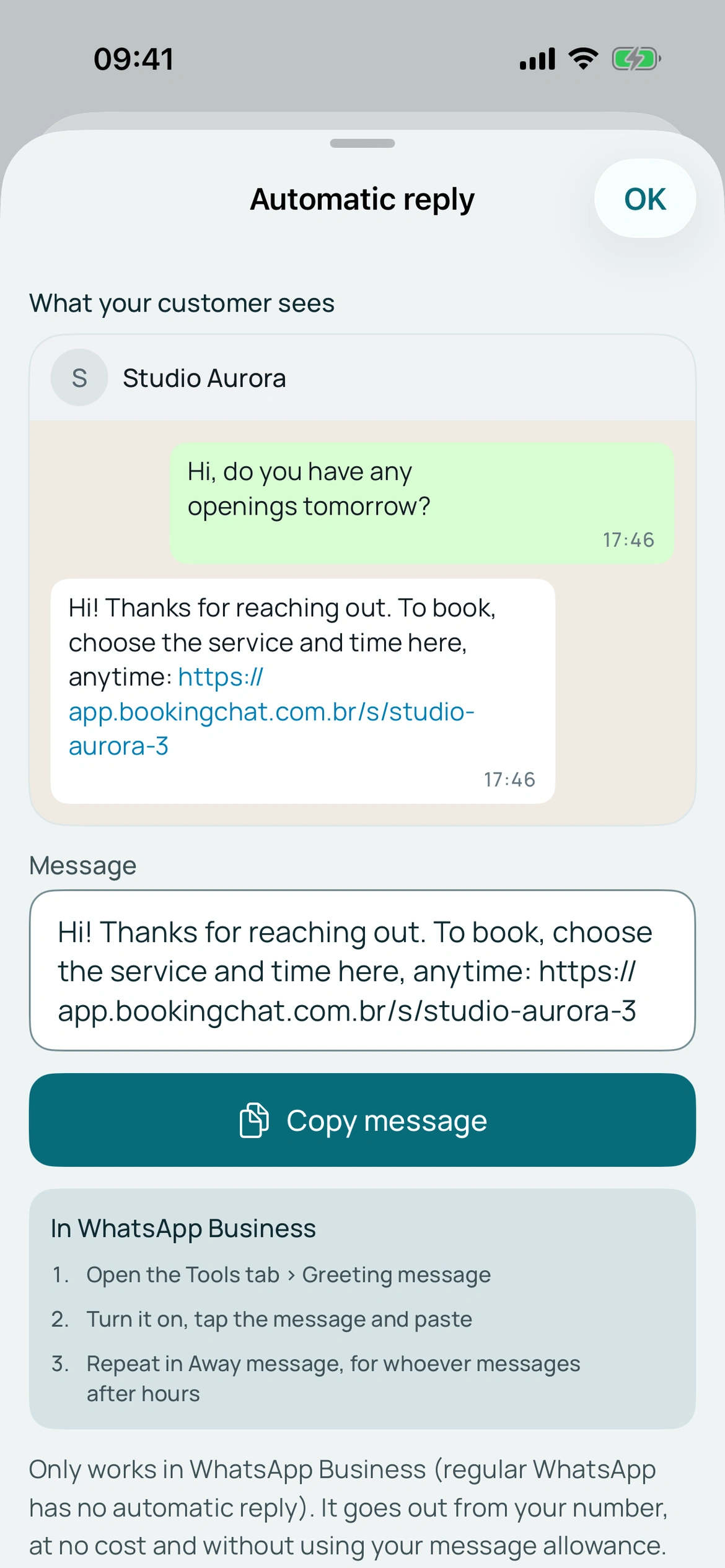
In Share, open Automatic reply, review the text containing your link and copy it. Edit the introduction if needed.
BookingChat prepares the message. Your WhatsApp Business sends it after you configure its tools. This is separate from receipts and confirmation requests sent by BookingChat’s official number.
BookingChat product demo. The information shown is illustrative.
3. Configure greeting and away messages
Open WhatsApp Business tools and Greeting message, enable it and paste the text. Review recipients. Greeting eligibility follows WhatsApp rules; it is not a reply to every incoming message.
Use an away message to guide customers outside working hours. Review its schedule, recipients and device connection. Options can vary by version. Quick replies are manually sent shortcuts, not this automation.
4. Test the message and link
Check the setup with an eligible contact and open the link. Customers should reach your page to choose a service and time.
BookingChat does not answer conversations or book inside the chat. WhatsApp directs customers to the link; booking happens on the web. Delivery follows WhatsApp Business rules and availability.
Official sources and instructions
Put it into practice in your calendar
No card required to try it.
App for Android and iPhone. Your customer books in their browser.